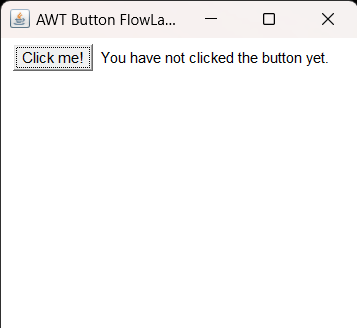
1. Create a simple AWT application that displays a button with FlowLayout manager.
            import java.awt.*;
            import java.awt.event.*;

            class a
            {
                public static void main(String[] x)
                {
                    // Create a new frame.
                    Frame f = new Frame("AWT Button FlowLayout ");

                    // Set the size of the frame.
                    f.setSize(300, 300);

                    // Handle the window closing event.
                    f.addWindowListener(new WindowAdapter() {
                        public void windowClosing(WindowEvent e) {
                            System.exit(0);
                        }
                    });

                    // Create a button and add it to the frame.
                    Button b1= new Button("Click me!");
                    f.add(b1);

                    // Create a label and add it to the frame.
                    Label l1 = new Label("You have not clicked the button yet.");
                    f.add(l1);

                    // Set the layout manager for the frame to FlowLayout.
                    f.setLayout(new FlowLayout());

                    // Display the frame.
                    f.setVisible(true);
                }
            }
Output
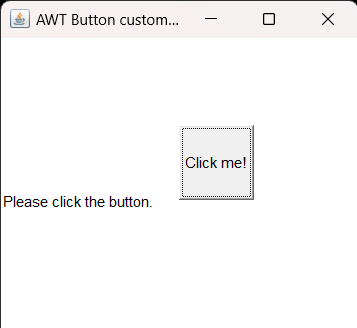
2. Create a simple AWT application that displays a button with Custom Layout.
            import java.awt.*;
import java.awt.event.*;

class a{
    public static void main(String[] x)
    {
        // Create a new frame.
        Frame f = new Frame("AWT Button custom Layout ");

        // Set the size of the frame.
        f.setSize(300, 300);


        // Create a button and add it to the frame.
        Button b1= new Button("Click me!");

        // Set the layout manager for the frame tocustom layout.
        b1.setBounds(150,100,60,60);
        f.add(b1);

        // Create a label and add it to the frame.
        Label l1 = new Label("Please click the button.");
        f.add(l1);


        // Display the frame.
        f.setVisible(true);
         // Handle the window closing event.
        f.addWindowListener(new WindowAdapter() {
            public void windowClosing(WindowEvent e) {
                System.exit(0);
            }
        });

    }
}
Output
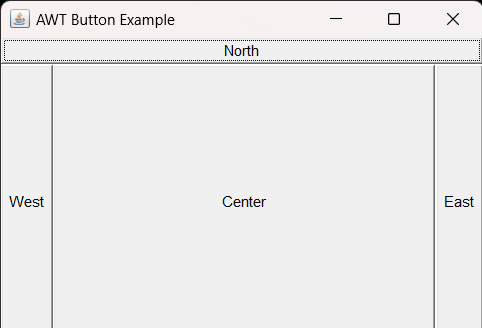
3. Create a simple AWT application that displays multiple buttons with BorderLayout manager (North, East, West, South, Center).
            import java.awt.BorderLayout;
import java.awt.Button;
import java.awt.Frame;

class AWTButtonExample {
    public static void main(String[] args) {
        Frame frame = new Frame("AWT Button Example");


        Button northButton = new Button("North");
        Button eastButton = new Button("East");
        Button westButton = new Button("West");
        Button southButton = new Button("South");
        Button centerButton = new Button("Center");


        frame.add(northButton, BorderLayout.NORTH);
        frame.add(eastButton, BorderLayout.EAST);
        frame.add(westButton, BorderLayout.WEST);
        frame.add(southButton, BorderLayout.SOUTH);
        frame.add(centerButton, BorderLayout.CENTER);


        frame.setSize(400, 300);
        frame.setVisible(true);


        frame.addWindowListener(new java.awt.event.WindowAdapter() {
            public void windowClosing(java.awt.event.WindowEvent windowEvent) {
                System.exit(0);
            }
        });
    }
}
Output
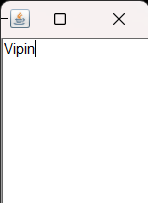
4. Create a simple AWT application that displays a TextField with FlowLayout manager.
            //create  a simple AWT application  that displays a TextField with FlowLayout manager.
class awt{
	public static void main(String[] gfdsafgvsds){
        java.awt.Frame f = new java.awt.Frame();
        java.awt.TextField t = new java.awt.TextField("Vipin");
		f.setSize(100,200);
		f.setVisible(true);
		f.add(t);
	}
}
Output
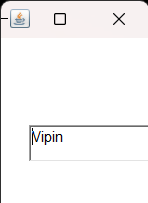
5. Create a simple AWT application that displays a TextField with Custom Layout.
            //create  a simple AWT application  that displays a TextField with Custom manager.
            class awt{
              public static void main(String[] gfdsafgvsds){
                    java.awt.Frame f = new java.awt.Frame();
                    java.awt.TextField t = new java.awt.TextField("Vipin");
                    f.setLayout(null);
                    t.setBounds(30,100,150,30);
                f.setSize(100,200);
                f.setVisible(true);
                f.add(t);
              }
            }
Output
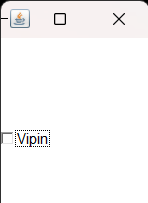
6. Create a simple AWT application that displays a Checkbox with FlowLayout manager.
            //Create a simple awt Application that displays a Checkbox with flowLayout Manager.
            class awt{
              public static void main(String[] gfdsafgvsds){
                    java.awt.Frame f = new java.awt.Frame();
                    java.awt.Checkbox t = new java.awt.Checkbox("Vipin");

                f.setSize(100,200);
                f.setVisible(true);
                f.add(t);
              }
            }
Output
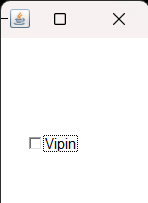
7. Create a simple AWT application that displays a Checkbox with Custom Layout.
            //Create a simple awt Application that displays a Checkbox with Custom Manager.
            class awt{
              public static void main(String[] gfdsafgvsds){
                    java.awt.Frame f = new java.awt.Frame();
                    java.awt.Checkbox t = new java.awt.Checkbox("Vipin");
                   f.setLayout(null);
                   t.setBounds(30,100,150,30);
                f.setSize(100,200);
                f.setVisible(true);
                f.add(t);
              }
            }
Output
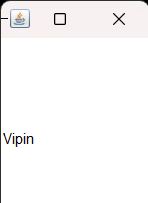
8. Create a simple AWT application that displays a Label with FlowLayout manager.
            //Create a simple awt Application that displays a Label with FlowLayout manager.
            class awt{
              public static void main(String[] gfdsafgvsds){
                    java.awt.Frame f = new java.awt.Frame();
                    java.awt.Label t = new java.awt.Label("Vipin");
                f.setSize(100,200);
                f.setVisible(true);
                f.add(t);
              }
            }
Output
9. Create a simple AWT application that displays a Label with Custom Layout.
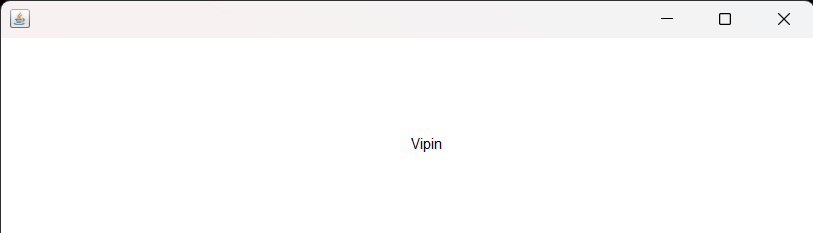
            //Create a simple awt Application that displays a Label with CustomLayout manager.
            class awt{
              public static void main(String[] gfdsafgvsds){
                    java.awt.Frame f = new java.awt.Frame();
                    java.awt.Label t = new java.awt.Label("Vipin");
                   f.setLayout(null);
                   t.setBounds(334,100,150,30);
                f.setSize(100,200);
                f.setVisible(true);
                f.add(t);
              }
            }
Output
12. Create a simple AWT application that displays a CheckboxGroup with FlowLayout manager.
            import java.awt.*;
            import java.awt.event.*;
            class awtpro1
            {
                awtpro1()
                {
                    Frame f= new Frame("checkbox Group");
                    Label l1= new Label("which is your favourite programming language?");
                    CheckboxGroup cg= new CheckboxGroup();
                    Checkbox c1= new Checkbox("HTML",cg, false);
                    Checkbox c2= new Checkbox("C",cg, false);
                    Checkbox c3= new Checkbox("C++",cg, false);
                    Checkbox c4= new Checkbox("JAVA",cg, false);
                    f.setSize(700,400);
                    f.setLayout( new FlowLayout());
                    f.setVisible(true);
                    f.add(l1);
                    f.add(c1);
                    f.add(c2);
                    f.add(c3);
                    f.add(c4);
                    f.addWindowListener (new WindowAdapter() {
                        public void windowClosing (WindowEvent e) {
                            System.exit(1);
                        }
                   });
                  }
                public static void main(String st[])
                {
                    new awtpro1();
                }

            }
Output

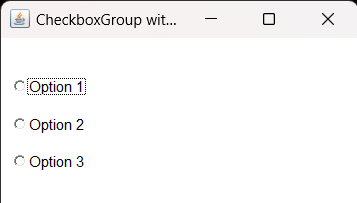
13. Create a simple AWT application that displays a CheckboxGroup with Custom Layout.
            import java.awt.*;
            import java.awt.event.*;
             class CustomCheckboxLayoutExample extends Frame {
                public CustomCheckboxLayoutExample() {
                    setTitle("CheckboxGroup with Custom Layout");
                    setSize(300, 200);
                    addWindowListener(new WindowAdapter() {
                        public void windowClosing(WindowEvent we) {
                            System.exit(0);
                        }
                    });


                    CheckboxPanel checkboxPanel = new CheckboxPanel();


                    CheckboxGroup checkboxGroup = new CheckboxGroup();

                    Checkbox checkbox1 = new Checkbox("Option 1", checkboxGroup, false);
                    Checkbox checkbox2 = new Checkbox("Option 2", checkboxGroup, false);
                    Checkbox checkbox3 = new Checkbox("Option 3", checkboxGroup, false);

                    checkboxPanel.addCheckbox(checkbox1);
                    checkboxPanel.addCheckbox(checkbox2);
                    checkboxPanel.addCheckbox(checkbox3);


                    add(checkboxPanel);
                }

                public static void main(String[] args) {
                    CustomCheckboxLayoutExample example = new CustomCheckboxLayoutExample();
                    example.setVisible(true);
                }
            }

            class CheckboxPanel extends Panel {
                private int checkboxCount;
                private int padding = 10;

                public CheckboxPanel() {
                    setLayout(null); // Use a null layout for custom positioning
                }

                public void addCheckbox(Checkbox checkbox) {
                    checkboxCount++;
                    checkbox.setBounds(padding, checkboxCount * 30, 100, 20);
                    add(checkbox);
                }
            }
Output
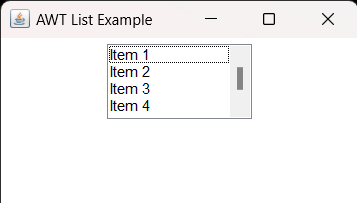
14. Create a simple AWT application that displays a List with FlowLayout manager.
            // Create a simple AWT application that displays a List with FlowLayout manager. (Program 14)
            // Created by Aryan , Rollno 7070
            // Note : In order to compile and run this program , rename it from "7070Awt14.java" to "Awt14.java"

            import java.awt.*;
            import java.awt.event.*;

            class Awt14 {
                private Frame frame;
                private List myList;

                public Awt14() {
                    frame = new Frame("AWT List Example");
                    myList = new List();

                    // Add items to the List
                    myList.add("Item 1");
                    myList.add("Item 2");
                    myList.add("Item 3");
                    myList.add("Item 4");
                    myList.add("Item 5");

                    // Set FlowLayout for the frame
                    frame.setLayout(new FlowLayout());

                    // Add the List to the frame
                    frame.add(myList);

                    // Add a WindowListener to handle closing the frame
                    frame.addWindowListener(new WindowAdapter() {
                        public void windowClosing(WindowEvent windowEvent) {
                            System.exit(0);
                        }
                    });

                    // Set frame properties
                    frame.setSize(300, 200);
                    frame.setVisible(true);
                }

                public static void main(String[] args) {
                    new Awt14();
                }
            }
Output
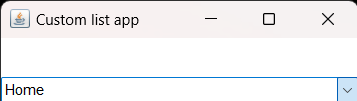
15. Create a simple AWT application that displays a List with Custom Layout.
            import java.awt.Choice;
            import java.awt.Frame;
            class prog15{
            public static void main(String args[]){
            /*
                 Topic= Graphical user interface AWT
                 prog.no 15.Create a simple AWT application that displays a List with Custom
                 Layout.

            */
            Frame f=new Frame("Custom list app");
             Choice choose =new Choice();
            choose.add("Home");
            choose.add("Office");
            choose.add("Card");
            choose.add("Tables");
            choose.add("Hourse");
            choose.add("Purse");
            choose.add("All");
            f.add(choose);
            f.setSize(300,300);
            f.setVisible(true);
            }
            }
Output
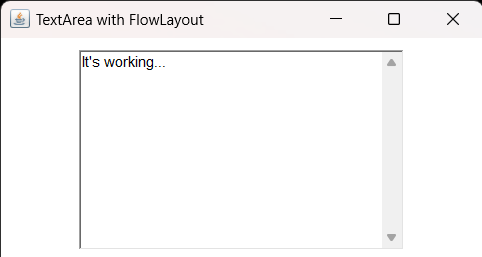
16. Create a simple AWT application that displays a TextArea with FlowLayout manager.
            import java.awt.*;
            import java.awt.event.*;

            class textarea extends Frame {
                private TextArea textArea;

                    textarea() {
                    setTitle("TextArea with FlowLayout");
                    setSize(400, 300);

                    setLayout(new FlowLayout(FlowLayout.CENTER, 10, 10));

                    textArea = new TextArea(10, 30);
                    add(textArea);

                    addWindowListener(new WindowAdapter() {
                        public void windowClosing(WindowEvent we) {
                            System.exit(0);
                        }
                    });
                }

                public static void main(String[] args) {
                    textarea app = new textarea();
                    app.setVisible(true);
                }
            }
Output
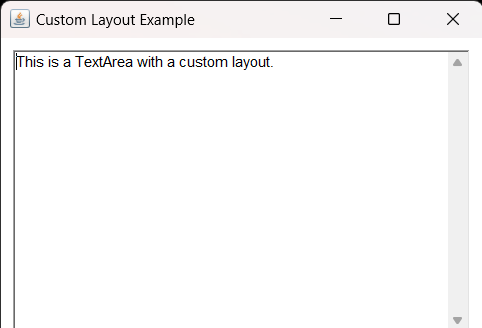
17. Create a simple AWT application that displays a TextArea with Custom Layout.
            import java.awt.*;
            import java.awt.event.*;

            class CustomLayoutExample {
                public static void main(String[] args) {

                    Frame frame = new Frame("Custom Layout Example");


                    TextArea textArea = new TextArea("This is a TextArea with a custom layout.");


                    frame.setLayout(new GridBagLayout());
                    GridBagConstraints gbc = new GridBagConstraints();
                    gbc.insets = new Insets(10, 10, 10, 10); // Add some padding


                    gbc.gridx = 0;
                    gbc.gridy = 0;
                    gbc.fill = GridBagConstraints.BOTH;
                    gbc.weightx = 1.0;
                    gbc.weighty = 1.0;
                    frame.add(textArea, gbc);


                    frame.addWindowListener(new WindowAdapter() {
                        public void windowClosing(WindowEvent e) {
                            System.exit(0);
                        }
                    });


                    frame.setSize(400, 300);
                    frame.setVisible(true);
                }
            }
Output
17. Create a simple AWT application that displays a TextArea with Custom Layout.
            /*
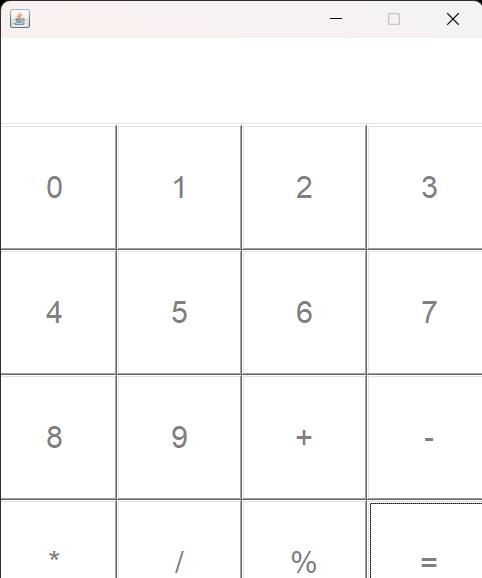
            18. Create a simple AWT application design a calculator that displays buttons, TextField with GridLayout manager
        */
        /*
        -	Calculator.java
        */
        class Calculator extends java.awt.Frame
        /* implements java.awt.event.ActionListener */
        {
          /*
            ---------------
            | constructor |
            ---------------
          */
          Calculator()
          {
            setSize(400,500);
            setResizable(false);
            setLayout(null);

            add(Calculator.myField());

            Calculator.myButton(this,16);
          }
          /*
            ====================================================
            | myFont | get argument size and return Font
            ====================================================
          */
          private static java.awt.Font myFont(int size)
          {
            return new java.awt.Font("Arial",0,size);
          }
          /*
            ====================================================
            | myField | private function return TextField
            ====================================================
          */
          private static java.awt.TextField myField()
          {
            java.awt.TextField fld = new java.awt.TextField();

            fld.setBounds(0,0,400,100);

            fld.setEditable(true);

            fld.setFont(Calculator.myFont(25));

            fld.setForeground(java.awt.Color.BLACK);

            fld.setBackground(java.awt.Color.WHITE);

            return fld;
          }
          /*
            ====================================================
            | myButton | function arguments size or Frame
            ====================================================
          */
          private static void myButton(java.awt.Frame frame,int size)
          {
            java.awt.Button btn[] = new java.awt.Button[size];

            int x = 0, y = 100;	// default coordinates

            char btn_label = ' ';

            for (int i = 0; i < size; i++)
            {
              btn[i] = new java.awt.Button();

              if (i > 9)
              {
                switch(i)
                {
                  case 10 : btn_label = '+'; break;

                  case 11 : btn_label = '-'; break;

                  case 12 : btn_label = '*'; break;

                  case 13 : btn_label = '/'; break;

                  case 14 : btn_label = '%'; break;

                  default : btn_label = '=';
                }
                btn[i].setLabel(""+btn_label+"");
              }
              else
              {
                btn[i].setLabel(""+i+"");
              }

              if (i != 0)
              {
                if ((i%4) == 0)
                {
                  x = 0;
                  y += 100;
                }
                else
                {
                  x += 100;
                }
              }
              btn[i].setBounds(x,y,100,100);

              Calculator.buttonStyle(btn[i],25);

              // btn[i].addActionListener(btn[i]);

              frame.add(btn[i]);
            }
          }
          /*
            ====================================================
            | buttonStyle | function get arugment size Button
            ====================================================
          */
          private static void buttonStyle(java.awt.Button btn, int size)
          {
            btn.setFont(Calculator.myFont(size));
            btn.setForeground(java.awt.Color.GRAY);
            btn.setBackground(java.awt.Color.WHITE);
          }
          /*
            ===================================================
            | buttonActionStyle | get argument size and Button
            ===================================================
          */
          private static void buttonActionStyle(java.awt.Button btn, int size)
          {
            btn.setFont(Calculator.myFont(size));
            btn.setForeground(java.awt.Color.BLACK);
            btn.setBackground(java.awt.Color.WHITE);
          }
          /*
            @Override : ActionListener
          public void actionPerformed(java.awt.event.ActionEvent element)
          {
            Calculator.buttonActionStyle(this,20);

            System.out.println(" button "+this.getLabel());
          }
          */
          /*
            [ main function ]----------------------------------
          */
          public static void main(String args[])
          {
            System.out.println(" Calculator execute ... ");

            new Calculator().setVisible(true);
          }
        }
        // the end ---
Output